
Technology & Phones
Buying a Used Phone in Ethiopia? Check These Things Before You Pay
A practical, Ethiopia-focused used-phone checklist: spot risky Telegram deals, verify IMEI and account locks, test replaced parts, battery, cameras, and local network service, then document the sale.
Aug 15, 2026 · 11 min read
Let’s be honest: buying a used phone in Ethiopia can save you a lot of money, but a shiny phone can still hide a tired battery, a cheap replacement screen, a foreign carrier lock, or somebody else's Apple or Google account. Once the money is sent, that very friendly Telegram seller can suddenly become impossible to find.
Use this routine when meeting a seller in Addis, Adama, Hawassa, Bahir Dar, or anywhere else in Ethiopia. Give yourself 20 to 30 minutes and take your time. If the seller keeps rushing you, that already tells you something.
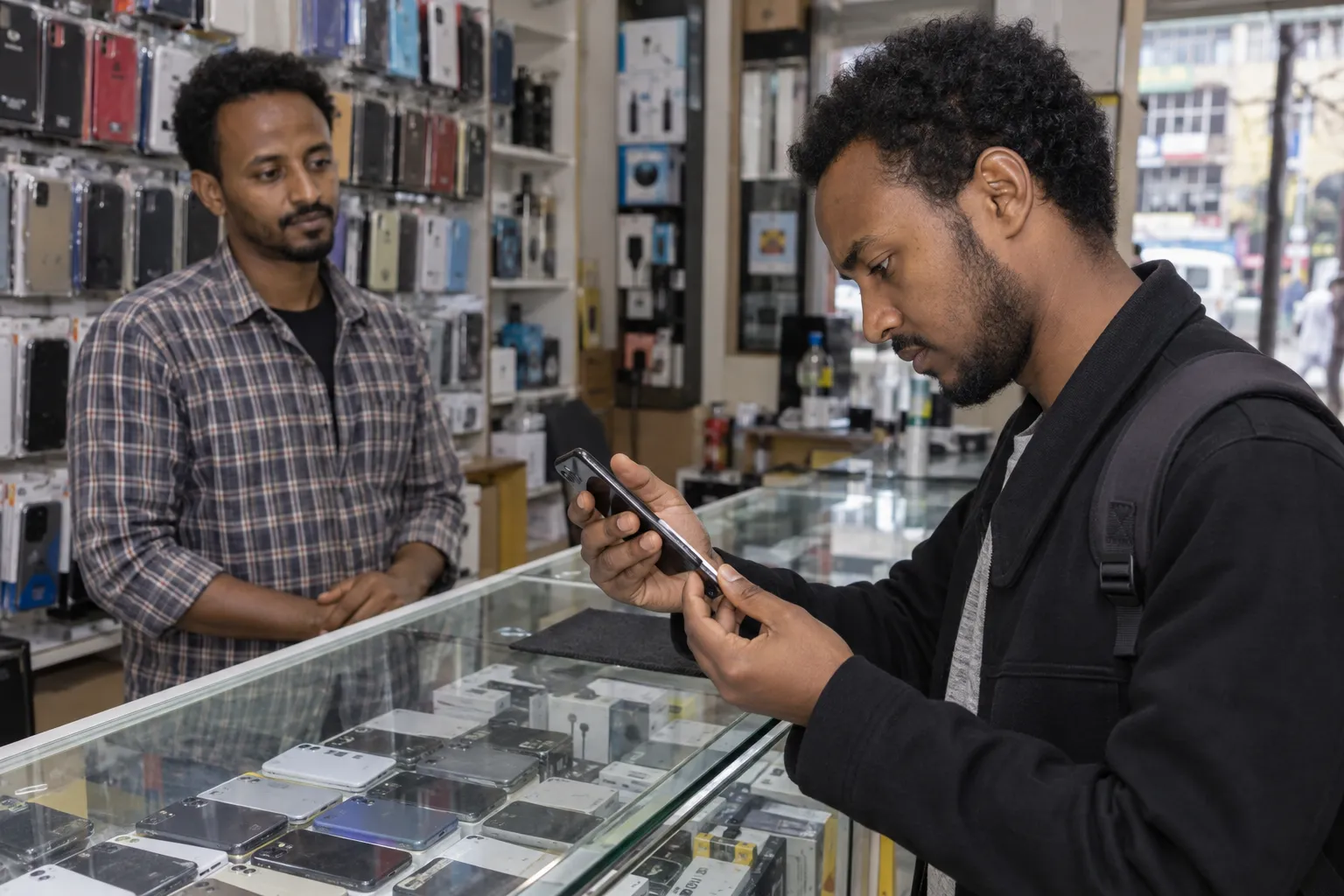
Image: Created for Addiyon.
1. Before You Meet: Take It Easy
Spend five minutes looking through Ethiopian Telegram phone listings and you will see the same phrases everywhere: “original,” “iCloud free,” “used abroad,” “fully unlocked,” and “100% battery.” Some listings even say Face ID does not work as if it is a tiny detail. Treat all of that as advertising, not proof.
We also found a public listing archive built around a very cheap iPhone, a deposit before delivery, “only two available,” and next-day urgency. A social post alone cannot prove fraud, but that combination is exactly when you should stop and insist on seeing the phone first.
Ethiopia's Information Network Security Administration specifically lists nonexistent online sales among common scams and gives the simplest useful advice: think before you pay.
- Save screenshots of the listing, seller username, phone number, price, and promised condition.
- Compare the price with several listings for the same model, storage, and condition.
- Meet in daylight at a calm café, inside a guarded mall, or at an established phone or repair shop with cameras and power.
- Avoid doing the handover on a crowded pavement, at a bus stop, or in the middle of a hectic phone market. Areas around Megenagna can get very crowded; if you meet there, choose a quieter seated café or a shop inside a mall, not the roadside.
- Take a friend for an expensive purchase and tell someone where you are going.
- Do not send a “reservation,” transport, or delivery deposit to a stranger.
Warning
A bargain that expires in ten minutes is usually not a bargain worth taking. Pay only after the exact phone in your hand has passed the checks below.
2. IMEI and Local Network: Test the Phone, Not the Story
Dial *#06# and write down every IMEI shown. A dual-SIM or eSIM phone may have IMEI 1 and IMEI 2. Compare them with Settings > About and, if available, the box or SIM tray. A matching box is helpful, but it is not proof of ownership: boxes, trays, and housings can be swapped.
You may hear very confident claims about national EIR registration. We could not verify a consumer rule requiring every buyer to register each handset in the Ethiopian Communications Authority's published directives, and a recent Ethiopian Reddit discussion shows the same uncertainty. So do not pay extra for somebody's homemade “EIR certificate.” What matters at the meetup is that the identifiers look normal and the phone actually works on the network you use.
- Reject an IMEI that is blank, all zeros, “unknown,” or different between the dialer and Settings.
- Put in your Ethio telecom or Safaricom Ethiopia SIM and make a call, send an SMS, and load a webpage using mobile data with Wi-Fi off.
- If the phone has two SIM slots or eSIM, test the configuration you actually intend to use.
- On iPhone, open Settings > General > About. “No SIM restrictions” beside Carrier Lock means it is unlocked, according to Apple's used-iPhone guide.
- For a phone imported from abroad, consider a GSMA Device Check for a reported-lost or stolen status, but do not treat a clean result as a guarantee that it cannot be reported later.
If service behaves strangely, call Ethio telecom on 994 or Safaricom Ethiopia on 700 while you still have the seller and phone in front of you.
3. Make Sure It Is Really That Model
A shiny back cover can fool anyone. Clone phones and heavily repaired phones can look surprisingly convincing from the outside, so open Settings and let the phone identify itself.
- Match the exact model name, model number, storage, serial number, and IMEIs in Settings with the listing and receipt.
- Restart the phone. Watch for strange boot screens, setup errors, or a different storage size after reboot.
- Open the App Store or Play Store, update one harmless app, and check that normal system settings work.
- On supported Android phones, check Play Store > profile picture > Settings > About > Play Protect certification. Google's certification help explains what an uncertified status can mean.
- On Samsung Galaxy devices, run the built-in tests in Samsung Members diagnostics for the screen, cameras, speakers, sensors, charging, and connectivity.
Tip
A serial-number website can identify a model, but it cannot prove that the phone in your hand is genuine, legally owned, or healthy. Use it as one clue, never the whole inspection.
4. Account Locks: Reset in the Right Order
Here is the order: test everything while the seller can still unlock the phone, ask them to remove their accounts, and then let them erase it in front of you. After that, connect it to Wi-Fi or mobile data and continue setup until you reach the home screen. That last step matters. A phone showing the Hello screen may still be linked to its previous owner.
- On iPhone, the seller must turn off Find My, sign out, and erase the phone. Do not buy if setup shows “iPhone Locked to Owner.” Apple gives the same advice.
- On Android, the seller should remove every Google account before resetting from Settings. Google's device-protection guidance explains why a reset phone may still demand a previously synced account.
- Complete online activation yourself. Do not accept a screenshot or a promise to send the password later.
- If you sign in with your own account but decide not to buy, remove your account and erase the phone again before handing it back.
Do not buy a “bypassed” iPhone or an Android phone sold with instructions never to reset or update it. That is a temporary workaround, not clean ownership.
5. Screen, Frame, and Repair History
Now get a little picky and inspect it carefully. Turn the brightness up and remove the case and screen protector if the seller allows it. Look along the edges in good light. Uneven gaps, fresh glue, a lifted screen, loose buttons, or a crooked camera bump can point to a rough repair or swollen battery.
- Show full-screen white, black, red, green, and blue images to find dead pixels, OLED burn-in, bright spots, and discoloration.
- Drag an app icon slowly across the whole screen and type across every row of the keyboard to find dead touch zones.
- Test automatic brightness, rotation, vibration, and the proximity sensor during a call.
- On iPhone with iOS 15.2 or later, check Settings > General > About > Parts and Service History. Apple says “Unknown,” “Used,” or “Finish Repair” can reveal replaced, reused, unverified, or unfinished parts; see Apple's explanation.
- Check True Tone if that model supports it, but do not use True Tone alone as proof that the screen is original.
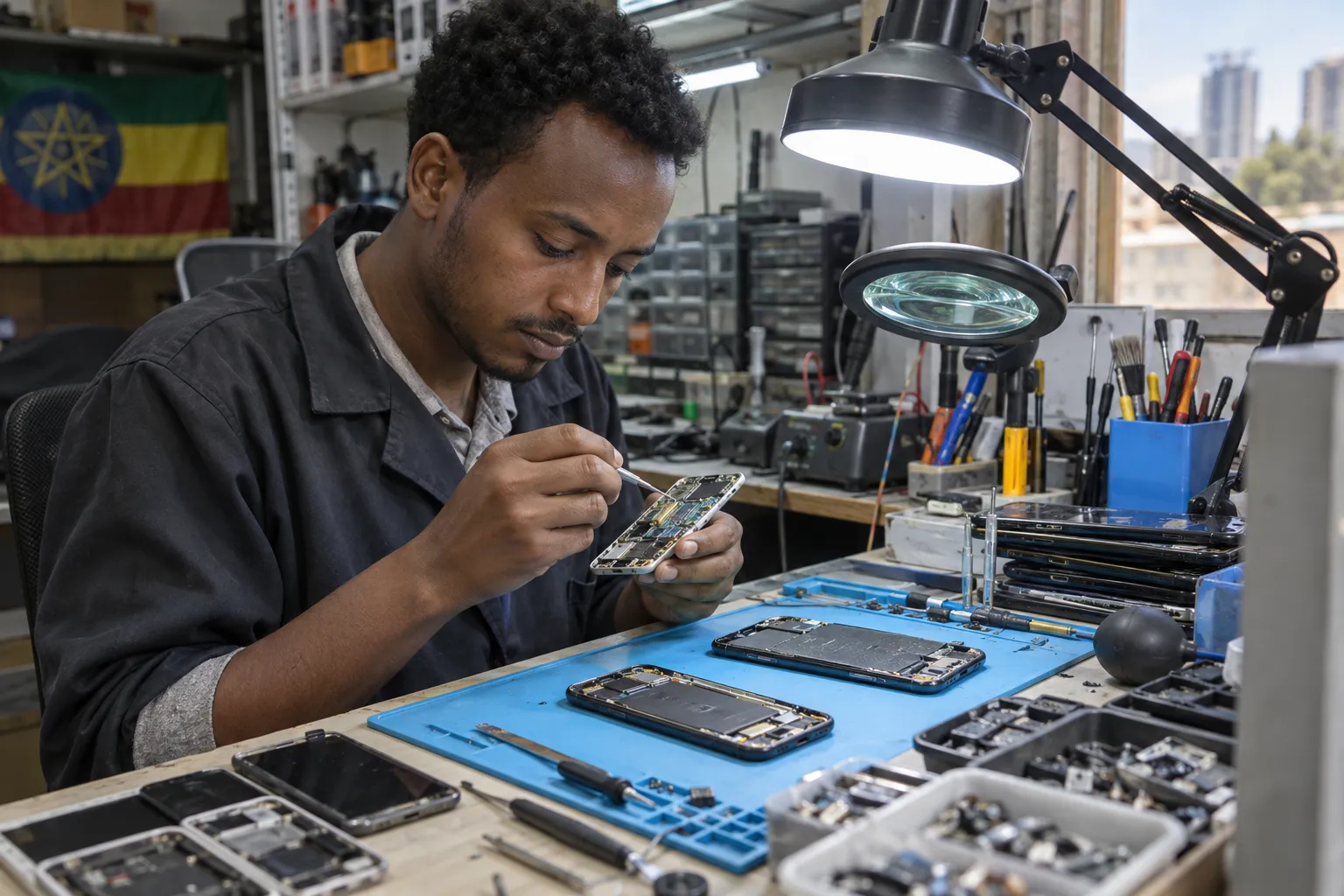
Image: Created for Addiyon.
Ask directly: “Has the screen, battery, camera, back glass, charging port, or motherboard ever been changed?” A replaced part is not automatically bad. An undisclosed or poorly installed part is the problem. Assume water resistance is gone after an unknown repair unless a qualified shop has tested the seal.
6. Battery and Charging: Do Not Worship the Percentage
Battery Health is useful, but do not let one percentage make the whole decision. On iPhone, check Settings > Battery > Battery Health & Charging, maximum capacity, peak-performance messages, and any unknown-battery warning. Around 80% is replacement territory, not a magical pass/fail line; Apple's battery guidance says recent batteries are designed to retain about 80% after a model-dependent number of cycles under ideal conditions. Google's guidance similarly labels supported Pixel batteries below 80% as reduced.
An old phone showing 100% may simply have a fresh replacement battery, which can be fine, or an unverified battery. Pair the percentage with repair history, charging behavior, heat, and real-world drain.
- Charge for at least five minutes with a known-good cable and adapter. The connector should not need to be held at an angle.
- Test fast charging and wireless charging if promised, and check that the phone does not become unusually hot.
- Use the phone unplugged for 10 minutes with camera, video, and mobile data. Watch for sudden drops or shutdowns.
- Reject a swollen battery, chemical smell, screen lifting from the frame, or repeated liquid-detection alert.
- Price a battery replacement before negotiating; below 80% can still be buyable if the discount honestly covers the repair.
7. Make a Real Call and Test Everything People Forget
Please do not test the sound by playing one YouTube video and calling it done. Make a real call to a friend. Hold the phone normally, switch to speakerphone, and ask whether your voice sounds clear. Then listen carefully at both low and high volume. A noisy street can hide a weak earpiece, damaged speaker, or bad microphone, which is another reason to meet somewhere calm.
- Photograph text and a face in bright and dim light with selfie, main, ultrawide, and telephoto lenses. Tap to focus and inspect the results.
- Record a video while switching lenses. Listen for rattling, buzzing, focus hunting, dust spots, and microphone distortion.
- Make a normal call with the phone at your ear. Confirm that you hear the other person clearly and that they hear you without crackling or cutting out.
- Switch the same call to speakerphone and test the loudspeaker and secondary microphone. Raise and lower the volume instead of testing only at maximum.
- Record and play a voice memo, a selfie video, and a rear-camera video. Phones use different microphones for calls and videos, so one successful recording is not enough.
- Enrol your own face or fingerprint. “Face ID not working” is not a small cosmetic issue just because a listing says so.
- Test volume, power, mute/action buttons, vibration, flashlight, GPS/maps, Wi-Fi, Bluetooth, hotspot, and headphone connection.
- Insert and remove the SIM tray carefully. Check for corrosion or a red liquid-contact indicator where the model exposes one.
8. Payment, Receipt, and a Clean Handover
You made it this far. Do not rush the payment now. Pay only after the reset and activation test. If you use telebirr, M-PESA, or a bank transfer, confirm the recipient name before sending. The seller should confirm the money inside their own app or account; neither side should rely only on an SMS screenshot. Ethio telecom's fraud page says not to transfer telebirr money at an unknown person's request and lists 994, 127, and SMS 9090 for reporting suspected fraud.
Write a simple receipt, even for a person-to-person sale. Include the date, price, exact model, storage, colour, both IMEIs, known repairs or faults, seller and buyer names, contact numbers, and both signatures. Keep the listing screenshots and payment reference with it. For a shop, ask what its warranty actually covers, how long it lasts, and get that promise in writing.
Before you leave:
- Your SIM, calls, SMS, and mobile data work.
- Your Apple or Google account is the only owner account on the phone.
- Find My or Find Hub works under your account.
- The seller's photos, accounts, eSIMs, and payment apps are gone.
- You have the phone, receipt, promised accessories, and seller contact details.
Warning
Walk away if the seller refuses a reset, will not allow a real SIM test, changes the phone at the meeting, asks you to pay before inspection, or says a broken feature will “start working after an update.” Just say no. There will be another phone.
The 20-Minute Version
Short on time? Do these in order: compare the listing to Settings, check every IMEI, test your SIM call and data, inspect repair history and battery, test screen/cameras/audio/biometrics, have the seller remove all accounts and reset, activate online yourself, write the receipt, then pay.
The social posts used in this research are anecdotal, not verified findings about any particular seller. They were useful because they show the language and pressure tactics buyers actually encounter in Ethiopian phone listings. The technical checks above are grounded in guidance from Apple, Google, Samsung, GSMA, Ethiopia's telecom regulator, and the two local mobile operators.
Related articles
Technology & Buying Guides
Phone and Laptop Prices in Ethiopia: October 2026 Price Pulse
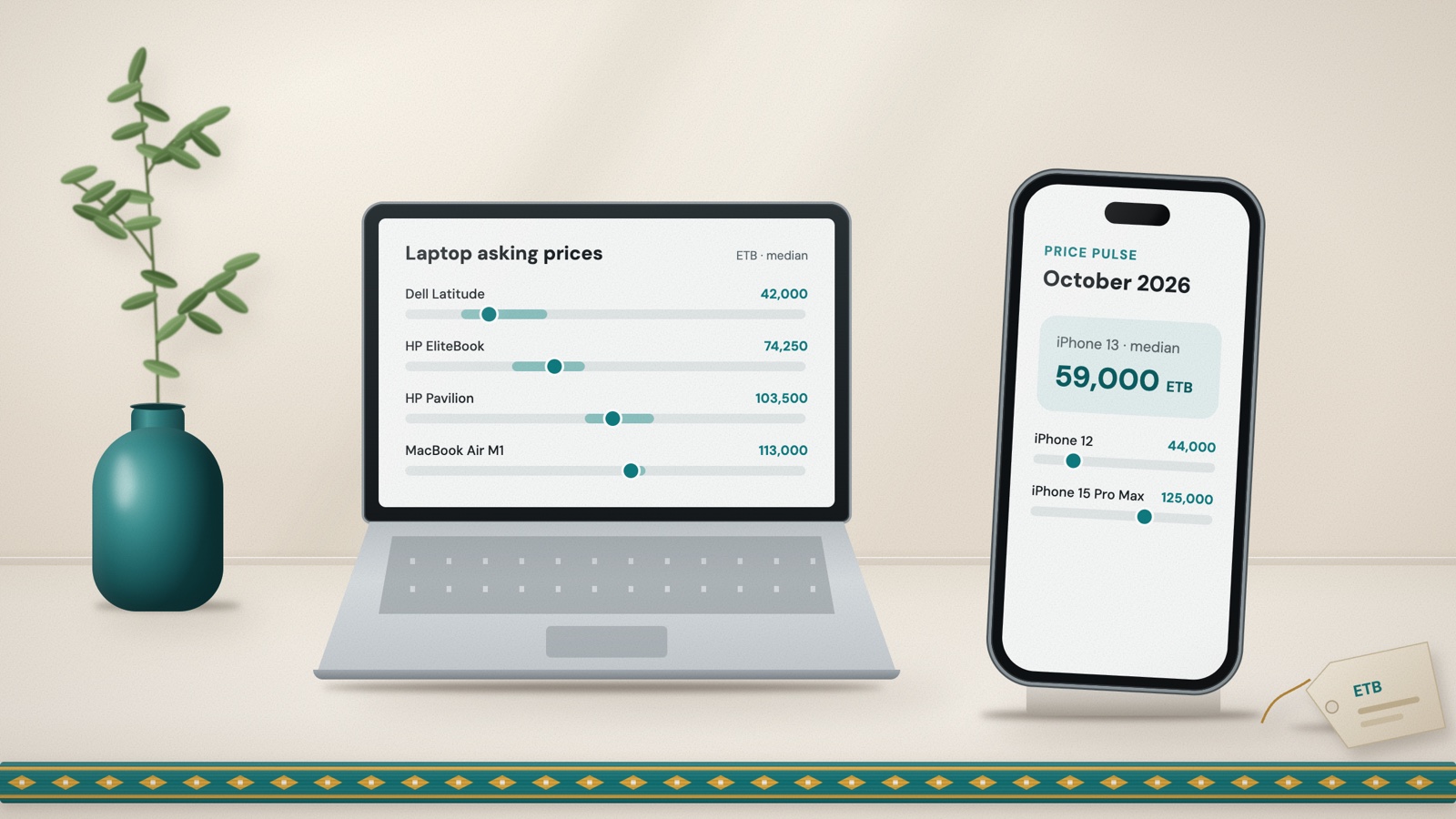
Median asking prices and typical ranges for popular iPhones, Samsung, Tecno and Xiaomi phones, and HP, Dell, Lenovo, Asus and MacBook laptops, from 1,700+ Addiyon listings published between 10 September and 9 October 2026.
Oct 10, 2026 · 10 min read
Technology & Buying Guides
New or Used? How to Decide Before Buying Electronics in Ethiopia
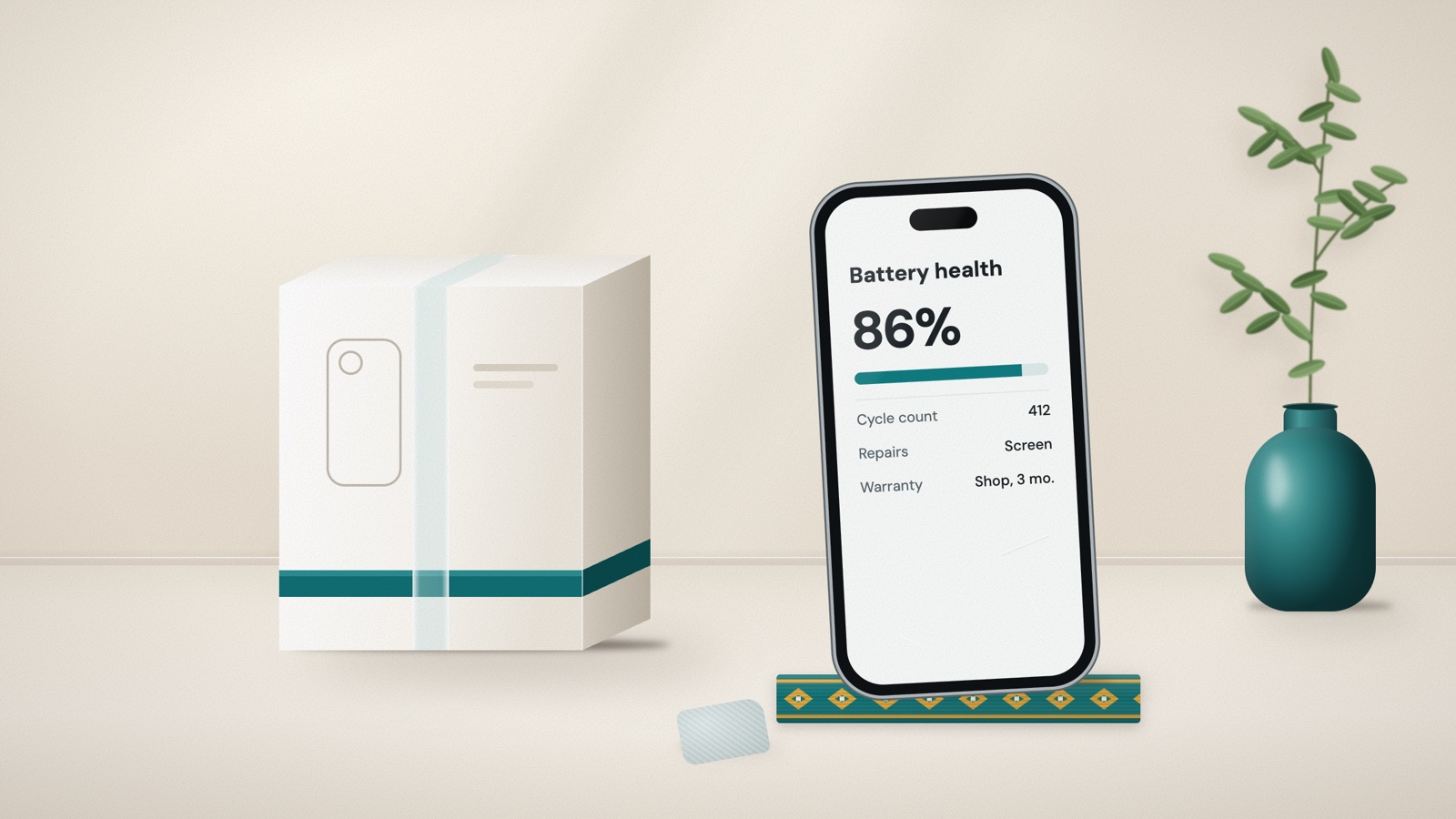
A practical guide to sealed, open-box, used, and refurbished electronics in Ethiopia, with iPhone and MacBook battery-health checks, Windows battery reports, cycle counts, repair history, and total-cost comparisons.
Sep 27, 2026 · 12 min read
Technology & Computers
Buying a Used Laptop in Ethiopia? Test These Things First
A practical Ethiopia-focused checklist for checking a used Windows laptop or MacBook, including the real model, account locks, battery health, screen, keyboard, ports, storage, thermals, repairs, and payment.
Aug 16, 2026 · 12 min read