
Technology & Computers
Buying a Used Laptop in Ethiopia? Test These Things First
A practical Ethiopia-focused checklist for checking a used Windows laptop or MacBook, including the real model, account locks, battery health, screen, keyboard, ports, storage, thermals, repairs, and payment.
Aug 16, 2026 · 12 min read
A clean-looking laptop can still have a tired battery, a replaced screen, liquid damage, a weak SSD, or an account lock waiting after reset. In Ethiopian listings, phrases like “original,” “imported,” “not refurbished,” and “battery issue is not a problem” appear often. Treat those as seller claims until the laptop proves them.
Give yourself at least 45 minutes, bring a flash drive and earphones, and meet somewhere with power and reliable internet. For an expensive machine, paying a technician for an independent inspection is usually cheaper than discovering the problem at home.
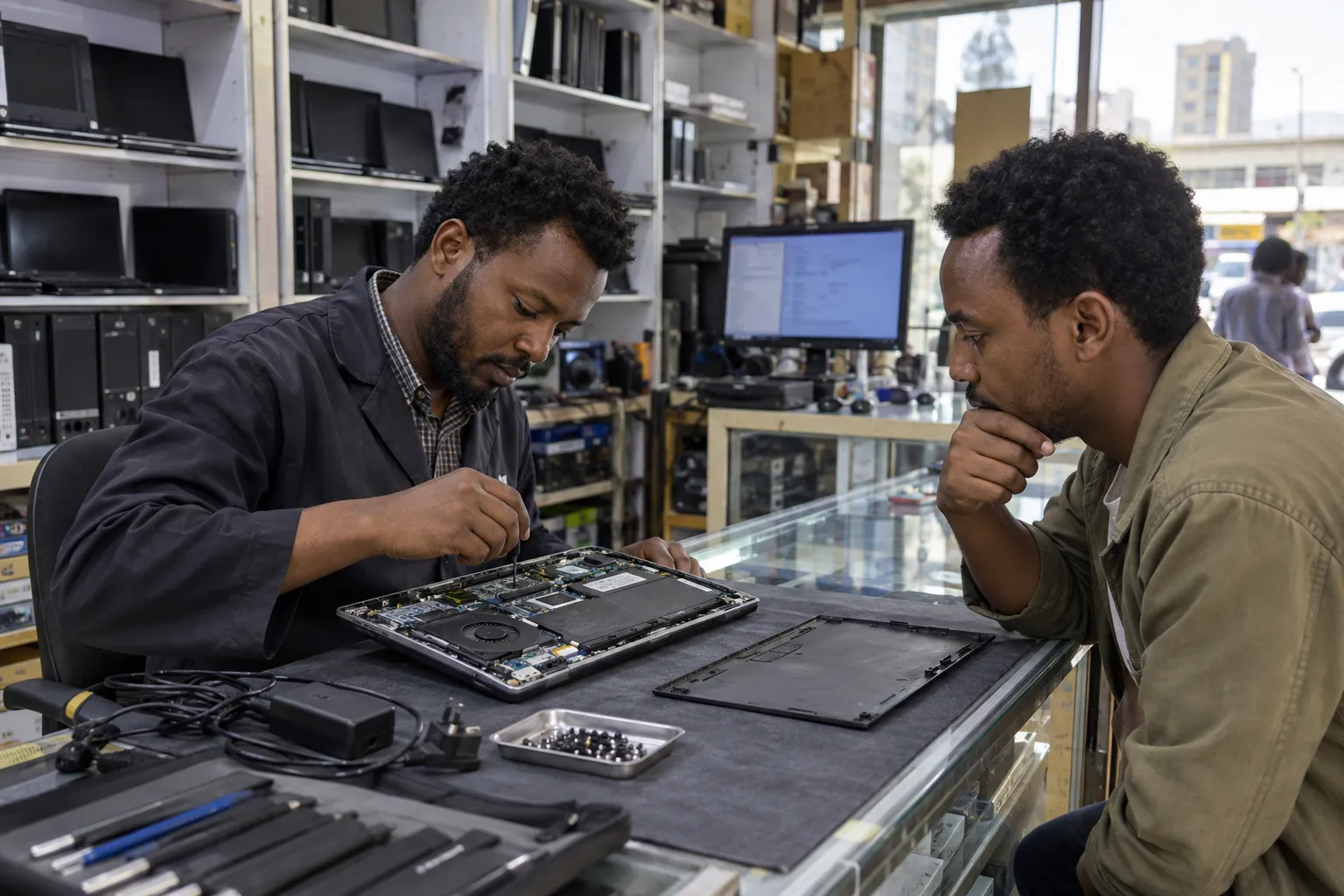
Image: Created for Addiyon.
1. Confirm the Seller and the Exact Laptop
Ethiopian Telegram shops advertise everything from older Intel MacBooks to gaming laptops, often with a short specification list and a negotiable price. Addis Electronics and Phones and Laptops show the kind of model, RAM, storage, condition, and price language buyers commonly see. A listing is only a starting point.
- Save the listing, seller profile, phone number, price, photos, and every promised specification before meeting.
- Ask whether the laptop is personally used, shop stock, refurbished, repaired, or imported in bulk.
- Ask for the exact model number and serial number before travelling. Check them again on the machine itself.
- Search the manufacturer's support page using the serial or service tag. Compare the original model, warranty history where available, and factory configuration with the laptop in front of you.
- Ask what was replaced: battery, display, keyboard, motherboard, storage, charging port, or casing.
- Do not send a viewing, reservation, delivery, or “unlock” fee before inspecting the laptop.
Warning
A sticker on the bottom can be moved to another casing. Match the serial number shown in BIOS, macOS System Information, or the manufacturer's diagnostic screen with the label and any receipt.
2. Check Account Locks Before Anything Else
This is the laptop version of buying a phone with an activation lock. A Mac can look completely usable while the seller is signed in, then ask for the previous owner's Apple Account after it is erased. Apple explains that Activation Lock can prevent someone else from turning off Find My, erasing, or reactivating a supported Mac.
- On a Mac, have the seller sign out of their Apple Account and turn off Find My in front of you.
- Erase the Mac and begin setup while connected to the internet. Stop if it asks for the previous owner's account.
- On Windows, check Settings > Accounts > Access work or school and remove any organization connection before reset.
- Ask whether BitLocker or device encryption is enabled and make sure the seller removes their account and recovery dependency.
- Use Microsoft's official Reset this PC process, choose Remove everything, then complete setup with the buyer's own account.
- Confirm Windows activation after reset and check that the installed edition is legitimate.
Do not accept “the password will come later.” If the seller cannot remove an account, management profile, firmware password, or encryption lock during the meeting, the deal is not ready.
3. Verify the Real Processor, RAM, Storage, and GPU
Model names like “Core i7” are not enough. An old i7 may be slower and less useful than a newer i5, and some memory or storage may be soldered and impossible to upgrade.
- On Windows, open Settings > System > About, Task Manager > Performance, Device Manager, and System Information.
- On a Mac, open About This Mac and System Information. Confirm model year, chip, memory, storage, and graphics.
- Compare the full CPU model and generation, not only i5 or i7. Confirm whether the advertised GPU is actually present.
- Check how much RAM is installed, how many slots are used, and whether it can be upgraded.
- Confirm usable storage capacity and whether the machine has an SSD or a slower hard drive.
- Check the operating-system support for the exact model. Microsoft notes that Windows 10 support ended on October 14, 2025 in its device information guidance, so confirm that a Windows laptop properly supports Windows 11.
4. Read Battery Health, Then Unplug It
Do not judge a battery by the percentage icon alone. A worn battery can show 100 percent and still drop quickly. On Windows 11, Microsoft documents the built-in battery report. Compare Design Capacity with Full Charge Capacity and review recent usage.
- Run powercfg /batteryreport on Windows and open the generated report.
- On a Mac, open System Information > Power and check cycle count, condition, and maximum capacity.
- Compare the cycle count with Apple's limit for that exact model. Apple's cycle-count table shows that limits vary, so “under 500” is not a universal pass or fail rule.
- Unplug the charger, raise brightness, play video, and use the laptop for at least 15 minutes. Watch for sudden percentage drops or shutdowns.
- Check whether the case, trackpad, or keyboard is lifting. Microsoft warns that a visibly swollen battery needs immediate care and should not be pressed or punctured.
- Confirm the charger is the correct wattage and charges reliably without cable movement.
Warning
Do not buy a laptop with a swollen battery for normal use. Stop charging it and have a qualified technician handle replacement and disposal.
5. Test the Screen, Keyboard, Camera, Mic, and Ports
Open full-screen white, black, red, green, and blue images. Slowly change brightness and move the lid through its normal range.
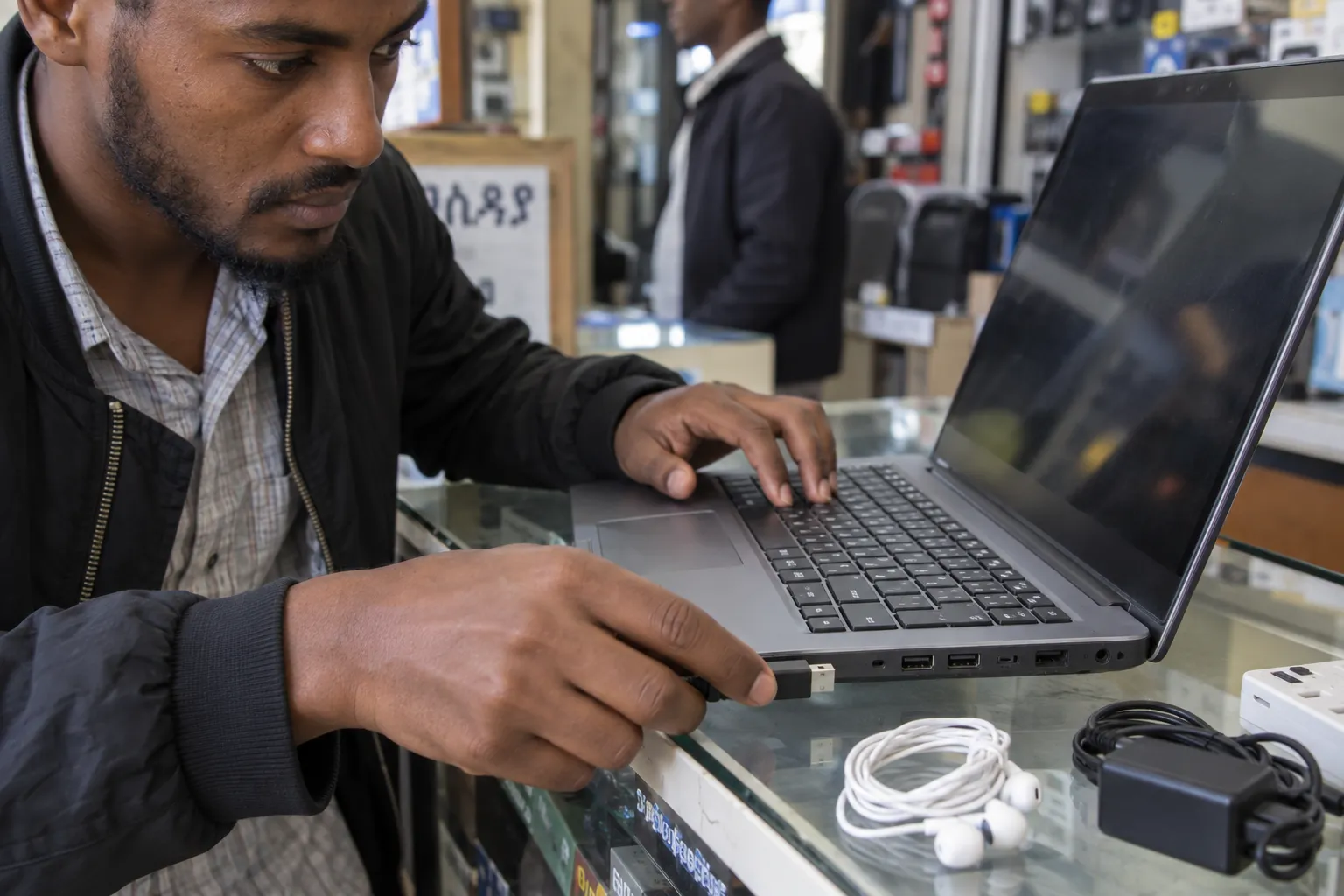
Image: Created for Addiyon.
- Look for dead pixels, pressure marks, bright patches, colour tint, flicker, image retention, and heavy backlight bleed.
- Check the bezel for glue, uneven gaps, cracks, and signs that the panel or lid was replaced.
- Press every key in a text editor, including Shift, Ctrl, Alt, function keys, arrows, backspace, and the power button.
- Test trackpad clicking, dragging, scrolling, and multi-touch gestures across the full surface.
- Record a short video while speaking. Play it back to test the webcam, microphone, and both speakers together.
- Test Wi-Fi, Bluetooth, headphone jack, every USB port, USB-C charging, HDMI or DisplayPort, card reader, and Ethernet where fitted.
- Close and reopen the lid. Check sleep, wake, hinges, and whether the display cuts out at certain angles.
6. Check Storage, Diagnostics, Heat, and Fans
A five-minute video is not a serious stress test. Use the manufacturer's built-in diagnostics first, then run a sensible workload while watching temperature, fan behaviour, charging, and stability.
- Run the full built-in hardware diagnostic. Dell manuals, for example, document BIOS information and embedded diagnostics through the one-time boot menu.
- Check SSD or hard-drive SMART health with a trusted tool and look for warnings, reallocated sectors, or unusually high wear.
- Copy a large file to and from a flash drive. Watch for disconnects, freezes, or extremely slow storage.
- Run several browser tabs, a high-resolution video, and an appropriate benchmark for 15 to 20 minutes.
- Listen for rattling, grinding, coil noise, or a fan that never settles. Check that the laptop does not freeze, restart, or become unusably slow.
- Test while plugged in and unplugged. Some failing systems only crash under battery load or when the dedicated GPU activates.
Do not install unknown “testing software” sent by the seller. Use built-in diagnostics or tools downloaded directly from a trusted developer.
7. Look for Liquid Damage and Rough Repairs
- Inspect screws for stripped heads or missing pieces and check whether the bottom cover sits flat.
- Look inside ports and vents for corrosion, sticky residue, heavy dust, or a burnt smell.
- Check rubber feet, hinges, palm rest, corners, and the area around the charging port for cracks or movement.
- Ask a technician to open the bottom cover when the value justifies it and the seller agrees.
- Compare internal part labels and battery dates with the seller's repair story.
- Ask for receipts for expensive replacements, but remember that a receipt does not replace testing.
8. Finish With a Reset, Receipt, and Safe Payment
- Write down the exact model, serial number, specifications, known defects, included charger and accessories, price, seller identity, and date.
- Pay only after inspection, reset, and successful setup.
- Verify electronic payment inside the recipient's own bank or wallet account, not from a screenshot or forwarded SMS.
- Keep the listing, chats, diagnostic screenshots, payment reference, and signed receipt.
- If buying from a shop, write down the return or warranty terms and what they actually cover.
The INSA warning on common online scams specifically includes nonexistent online sales. If the laptop cannot be tested, the seller will not reset it, or the price only exists for an immediate deposit, walking away is the cheapest diagnostic tool available.
Related articles
Technology & Buying Guides
New or Used? How to Decide Before Buying Electronics in Ethiopia
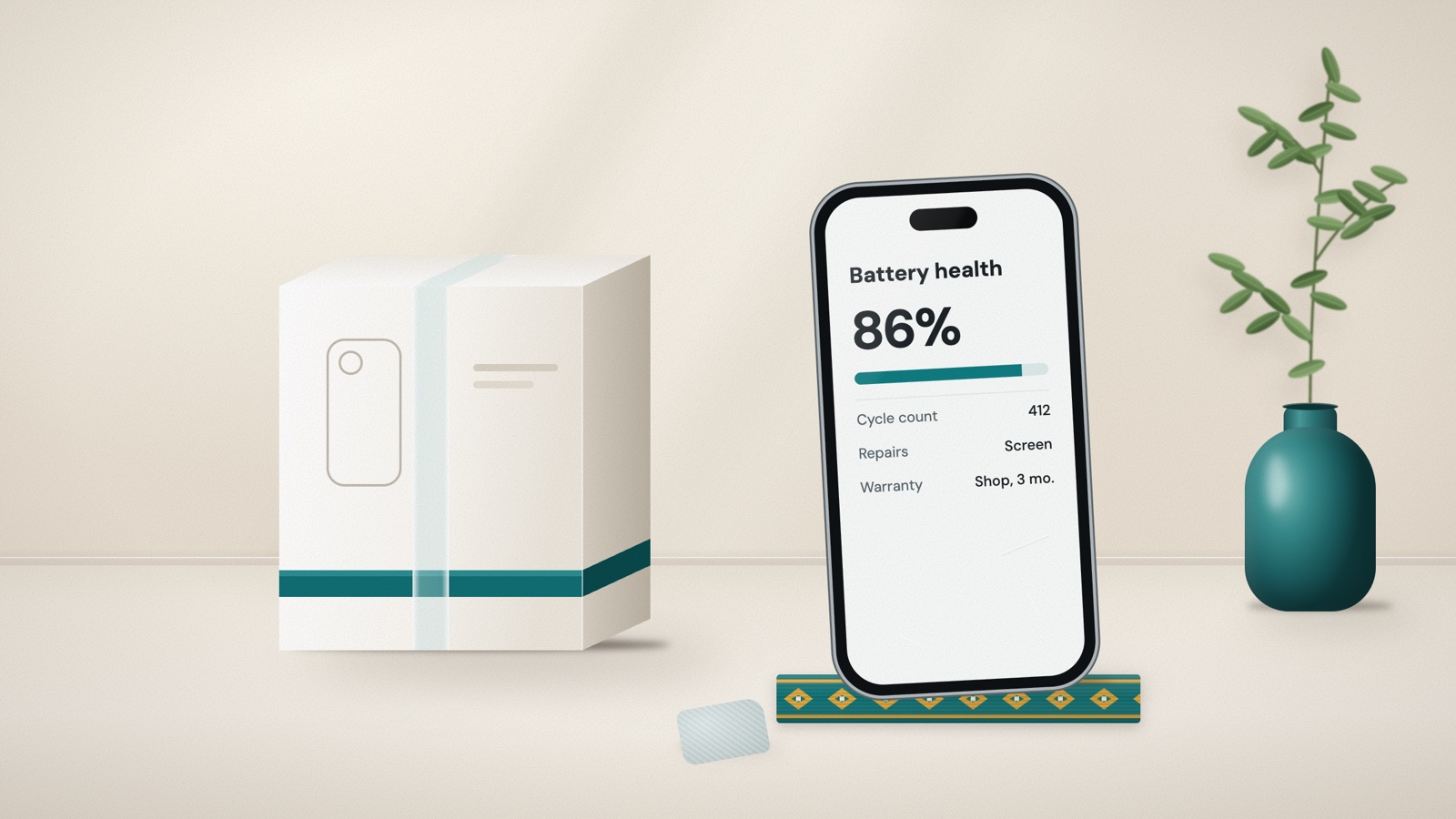
A practical guide to sealed, open-box, used, and refurbished electronics in Ethiopia, with iPhone and MacBook battery-health checks, Windows battery reports, cycle counts, repair history, and total-cost comparisons.
Sep 27, 2026 · 12 min read
Technology & Phones
Buying a Used Phone in Ethiopia? Check These Things Before You Pay
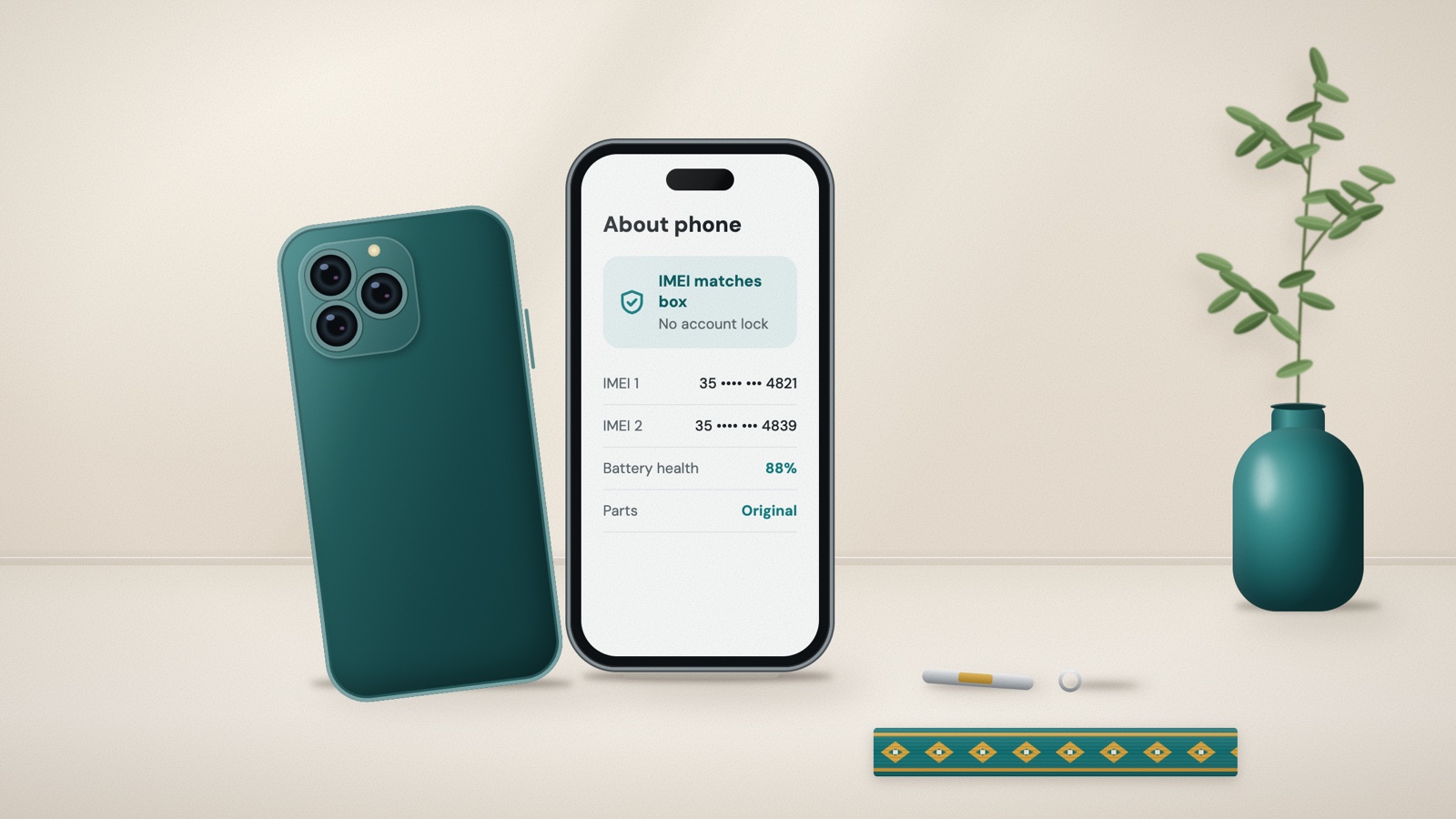
A practical, Ethiopia-focused used-phone checklist: spot risky Telegram deals, verify IMEI and account locks, test replaced parts, battery, cameras, and local network service, then document the sale.
Aug 15, 2026 · 11 min read
Technology & Buying Guides
Phone and Laptop Prices in Ethiopia: October 2026 Price Pulse
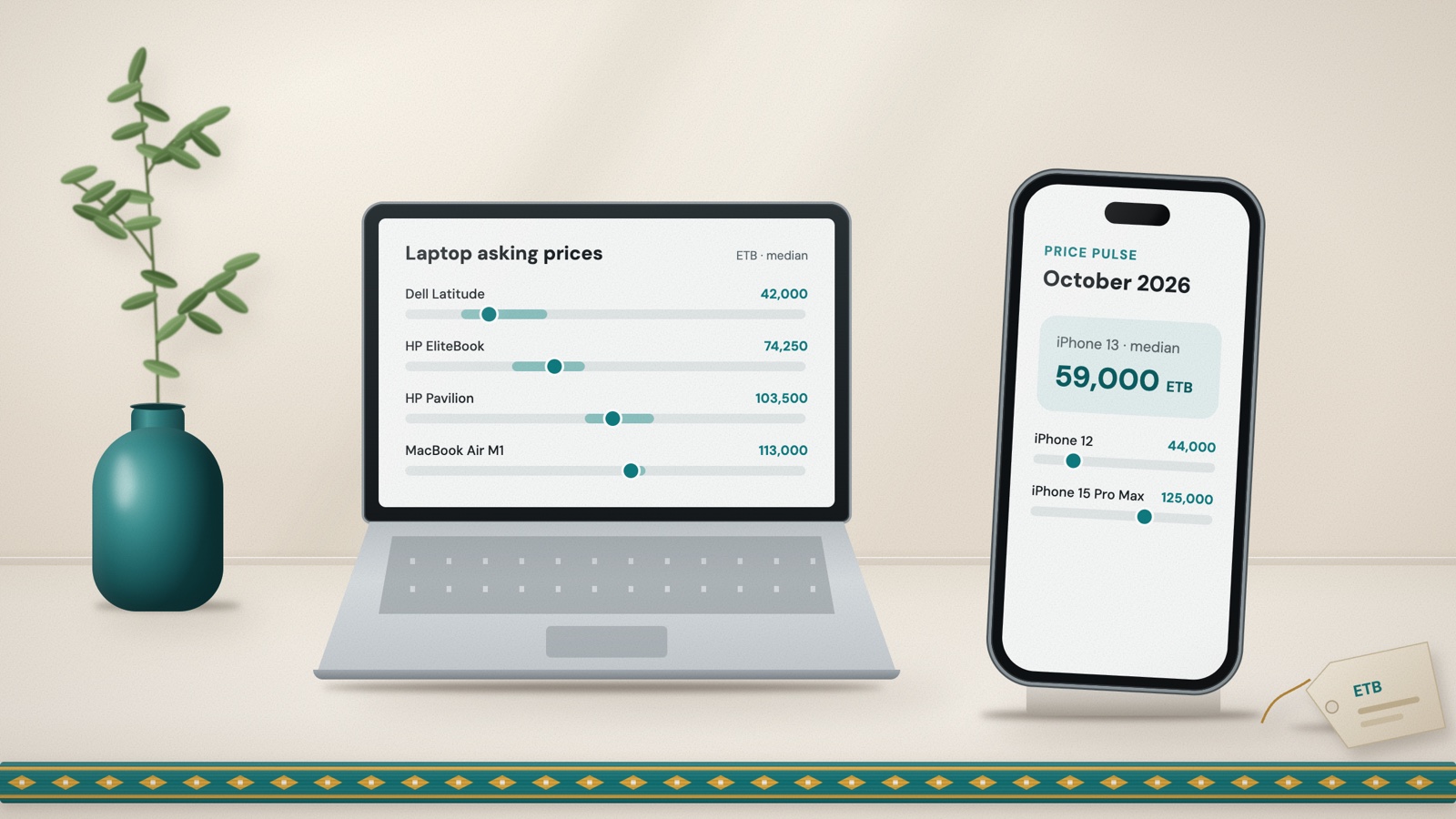
Median asking prices and typical ranges for popular iPhones, Samsung, Tecno and Xiaomi phones, and HP, Dell, Lenovo, Asus and MacBook laptops, from 1,700+ Addiyon listings published between 10 September and 9 October 2026.
Oct 10, 2026 · 10 min read