
Technology & Buying Guides
New or Used? How to Decide Before Buying Electronics in Ethiopia
A practical guide to sealed, open-box, used, and refurbished electronics in Ethiopia, with iPhone and MacBook battery-health checks, Windows battery reports, cycle counts, repair history, and total-cost comparisons.
Sep 27, 2026 · 12 min read
In Ethiopia, a laptop can arrive on a shop counter without its original packaging and still be advertised as “brand new.” The same question comes up with phones. A clean case, a fresh Windows installation, and the word “imported” do not tell you whether somebody has already used the device.
According to the local buying experience contributed for this guide, most laptops advertised as “new” are unpacked used stock, much of it imported through Dubai. Genuinely factory-packed laptops and phones are described as uncommon and considerably more expensive. That makes the condition label an important part of the price: you should know what you are paying for before deciding whether the deal is good.
Used electronics can be a sensible purchase. The expensive mistake is paying a new-device price for used equipment, then paying again for the battery, charger, screen, or repairs the seller forgot to mention.
1. Start With a Strict Rule: If It Is Not Packed, It Is Not New
“If it is not packed, it is not new.” Use that as your buying rule. Here, “packed” means the manufacturer's original, unopened packaging, with the appropriate factory seals intact. A device slipped into a replacement box, wrapped in fresh plastic, or placed inside a laptop bag does not meet that rule.
An opened device may genuinely have been unused or taken out only for display. That makes it open-box, and the seller should explain that history. It does not deserve an unopened-new price merely because the seller calls it new. If its history cannot be established, inspect and price it as used.
Keep these descriptions separate:
- Factory-sealed new: Original unopened retail packaging, a credible purchase trail, and a device that matches the box and invoice when opened.
- Open-box: Packaging has been opened. Ask whether it was a display item, return, upgrade, or previously activated device.
- Used: Previously owned or operated. “Very clean,” “slightly used,” and “like new” describe condition, not a new manufacturing history.
- Refurbished: Previously used, returned, or repaired equipment prepared for resale. Ask who refurbished it, what changed, and who stands behind the warranty.
“Dubai used” describes the seller's claimed sourcing and condition. It is neither a quality certificate nor a reason to reject every device. A properly inspected used import may suit your budget; the seller must still disclose its condition honestly.
- Ask whether the device is factory-sealed new, open-box, used, or refurbished, and have that description written on the receipt.
- Check for broken seals, labels placed over labels, mismatched model details, and accessories that do not match the advertised package.
- Agree how opening, inspection, and rejection will work before money changes hands.
- After opening, match the device's serial number or IMEI with the box and invoice.
- Ask what the warranty covers, who performs repairs, and whether there is a written return arrangement.
Warning
Packaging is a first filter, not a guarantee. A sealed refurbished device is still refurbished, and a box can be resealed. Neither a seal nor a setup welcome screen proves the full history of the device.
2. Decide What You Need Before Comparing Prices
Start with the work the device must do. A student writing assignments, a developer running projects, and someone editing video do not need the same laptop. A phone for calls and messaging has a different job from a phone bought mainly for photography or gaming.
- Write down the applications you use, the storage you need, and how long you must work away from a charger.
- For laptops, compare the exact processor or Apple chip, RAM, storage, screen, and any required graphics hardware. “Core i7” alone is not a complete specification.
- Confirm whether RAM and storage can be upgraded on that exact model. Do not budget for an upgrade the hardware does not support.
- For phones, check storage, SIM or eSIM support, carrier restrictions, camera needs, and local network operation.
- Check the manufacturer's current software-support information for the exact model before buying an older device.
Then compare the total cost of a usable device: asking price, necessary battery replacement, correct charger, repairs, upgrades, and any delivery charge. Ask a technician for an actual replacement quote rather than accepting “batteries are cheap” from the seller.
Compare like with like. A sealed new device with a meaningful written warranty should not be priced against a repaired device with missing accessories as if their only difference were the seller's profit. Browse phone listings, computer listings, and Addiyon's price guides for context. Listing prices are asking prices, not proof of what buyers ultimately paid.
3. Understand Battery Health and Cycle Count
The large battery percentage on the screen tells you how charged the battery is now. Battery health or maximum capacity estimates how much it can hold compared with when it was new. A worn battery can be charged to 100% and still provide disappointing runtime.
Cycle count is different again. A cycle is cumulative use equivalent to a full battery's capacity, not every time you connect a charger. Using roughly half a charge one day and half the next is about one cycle. Apple's explanation of battery cycles gives this example.
Read capacity, cycles, service warnings, and real unplugged behaviour together. A low cycle count does not exclude an old battery, prolonged plugged-in use, or replacement. A new replacement battery can improve a used device without making the whole device new.
There is no battery number that certifies “brand new.” Inspect the actual device and ask about replaced parts even when the seller proudly shows 100% health.
4. iPhone: Check Health, Cycles, and Repair History
Open these screens yourself on the phone you will take home. A screenshot in a Telegram message can belong to a different device.
Find Battery Health and Cycle Count
- On iPhone 15 and later running iOS 17.4 or later, open Settings > Battery > Battery Health. Read Maximum Capacity, Cycle Count, battery manufacture date, first-use date, and any replacement recommendation.
- On iPhone 11, 12, 13, and 14, open Settings > Battery > Battery Health & Charging. Read Maximum Capacity and any performance or service message. These models do not offer the same built-in cycle-count display; absence of that field is not a zero-cycle reading.
These paths and newer-model fields are documented in Apple's iPhone battery guide. The dates describe the battery; ask whether it has been replaced before treating them as evidence of the phone's entire history. Menu wording can vary with the model and software version.

Screenshot: Apple Support. These are example readings, not a phone we tested.
Apple describes an ideal-condition design target of 80% retained capacity at 500 complete cycles for iPhone 14 and earlier, and 1,000 for iPhone 15 and later. Those are design targets, not expiry dates or inspection pass marks. A phone below either cycle figure can still have a poor battery.
Look Beyond a Healthy Percentage
- Open Settings > General > About and look for Parts and Service History, where supported. Ask about any recorded battery, display, or other replacement.
- Read labels such as Genuine, Used, Unknown, or Finish Repair carefully. Apple explains that an Unknown message can have several causes, including a nongenuine part, a malfunction, or an unfinished verification process.
- If no history appears, do not treat that alone as proof that the phone has never been repaired. The information available depends on the model and iOS version.
See Apple's Parts and Service History guidance. A documented repair is something to assess and price; a repair hidden behind a “new” claim is a reason to question the deal.
If the phone says it cannot verify a genuine battery, the displayed health information may be inaccurate, according to Apple's battery-performance guidance. Ask for an independent assessment rather than trusting a percentage alone.
Use the camera, make a call with your own SIM, and watch the battery while the phone is unplugged. Sudden shutdowns, unstable charging, or abnormal heat matter more than a reassuring screenshot. For the rest of the inspection, follow our used-phone checklist.
5. MacBook: Read Both Maximum Capacity and Cycle Count
The Mac battery checks apply to MacBook laptops, not desktop Macs such as an iMac or Mac mini. First confirm the exact model, year or Apple chip, memory, and storage in Apple menu > About This Mac.
Check Battery Health
- Open Apple menu > System Settings > Battery.
- Look at Battery Health. Where available, click the information button beside it to see Maximum Capacity and the condition.
- Take Service Recommended seriously and include a qualified replacement quote in your budget.
Apple documents the condition labels in its Mac battery-condition guide and Maximum Capacity in its Battery settings guide. Older macOS versions may use System Preferences and offer different details.
Check Cycle Count
- Hold Option and click the Apple menu, then choose System Information.
- Under Hardware, select Power and find Cycle Count in Battery Information.
- Compare that figure with Apple's limit for the exact model, not a rule invented for every MacBook.
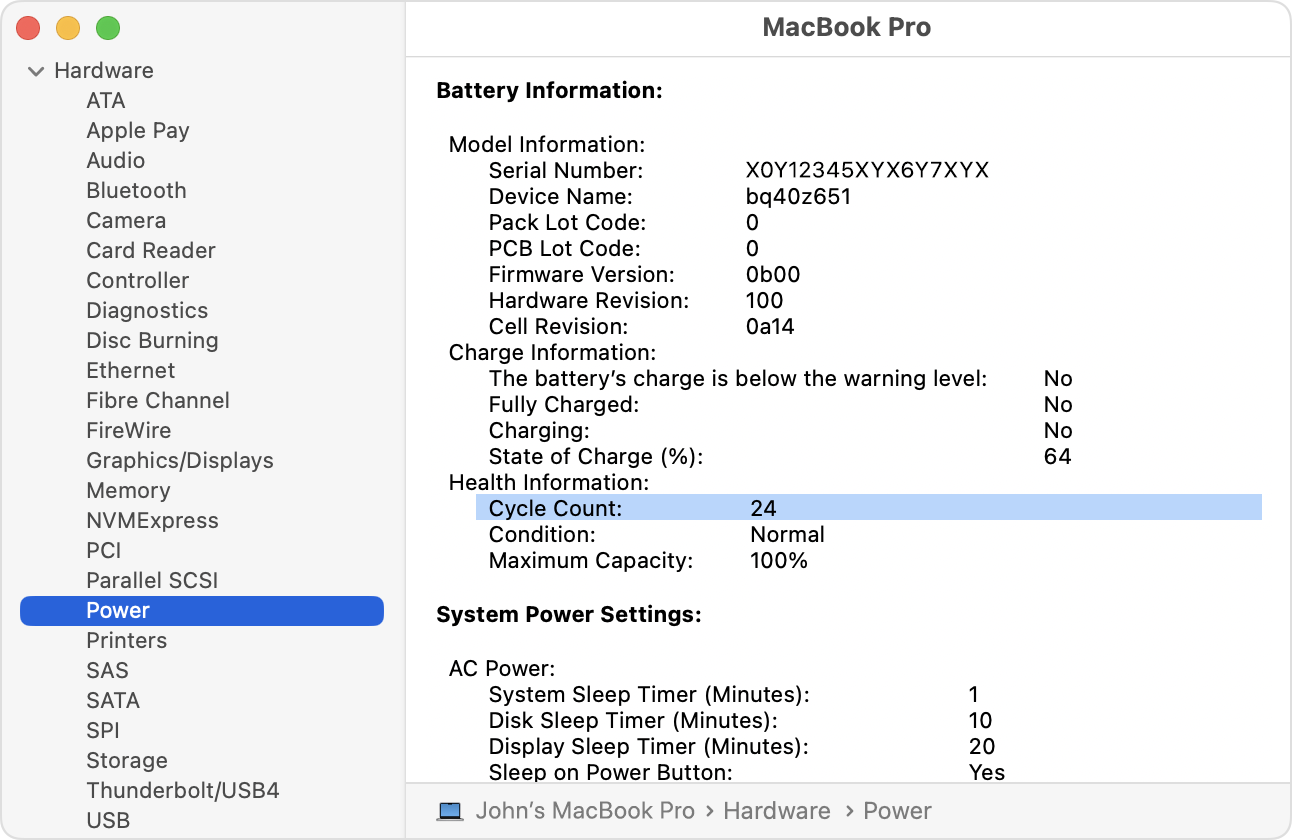
Screenshot: Apple Support. Look under Health Information for Cycle Count, Condition, and Maximum Capacity.
Apple's model-specific cycle table lists different limits, including 300, 500, and 1,000 cycles. A limit is not a countdown to sudden failure. Use it alongside current capacity, condition, and runtime.
Ask whether the battery was replaced and who did the work. A low-count replacement battery does not make an old MacBook new. Check the keyboard, trackpad, hinges, charging ports, screen, and charger as carefully as the battery screen.
Before paying for a used Mac, have the seller remove their account and Find My, then erase it and begin setup online. Stop if setup asks for the previous owner's account or an organization's remote management. Apple explains why Activation Lock matters.
6. Windows Laptop: Generate Your Own Battery Report
Windows does not provide one universal iPhone-style health screen for every laptop. Use its built-in battery report on the actual machine, then compare it with the manufacturer's diagnostics where available.
Create and Open the Report
- Open Start, type Command Prompt, right-click it, and choose Run as administrator. Have the seller approve the prompt if needed.
- Enter powercfg /batteryreport and press Enter.
- Read the saved HTML file location shown in the command window.
- Open File Explorer, go to that location, and double-click the report to open it in a browser.
These steps follow Microsoft's Windows battery-report guidance. The command creates a diagnostic report; it does not erase the laptop.
Compare Capacity and Cycles
Under Installed batteries, look for these fields:
- Design Capacity: The battery's stated capacity when new.
- Full Charge Capacity: Its reported present capacity at a full charge.
- Cycle Count: The reported charge/discharge count, if supported.
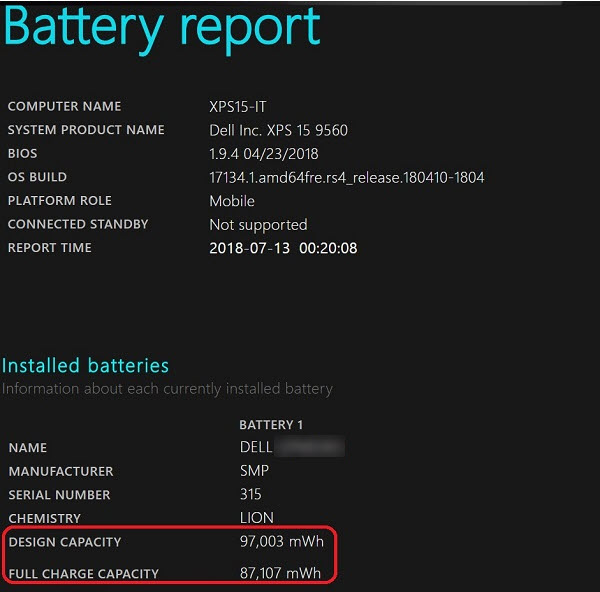
Screenshot: Dell Support. Compare the highlighted capacity fields. This example uses an older Windows version; report layout can vary.
A useful capacity estimate is Full Charge Capacity divided by Design Capacity, multiplied by 100. For example, 48,000 mWh divided by 60,000 mWh is 80%. That describes estimated retained capacity, not today's charge level. These example figures are illustrative, not a report from a particular laptop.
Microsoft's battery-information reference defines these capacity fields and notes that the underlying cycle value can be zero when a counter is unsupported. A missing, dashed, or zero reading therefore does not prove an unused battery. If the capacities are missing or implausible, use manufacturer diagnostics and a technician's assessment.
Review capacity history and recent usage too, but do not mistake a short report history for a new laptop. A fresh operating-system installation can leave little useful history. Ask about the battery and other replaced parts, and test unplugged operation before deciding.
For more battery-report options, see Microsoft's powercfg documentation. For account locks, hardware tests, storage, heat, and repairs, use our used-laptop inspection guide.
7. Test the Device Away From the Charger
Give a laptop at least 15 to 20 minutes unplugged under an ordinary workload: browser tabs, document work, or video at a useful brightness. For a phone, combine calls, camera use, browsing, and video. Note the starting charge, ending charge, and what you actually did.
This is a short screening test, not a reliable prediction of all-day battery life. Avoid accepting “eight hours” unless the seller explains the workload and you have evidence relevant to your own use.
- Watch for abrupt percentage drops, shutdowns, restarts, and unusually poor performance.
- Connect the correct charger and check that charging stays stable without holding the cable at an angle.
- Inspect for lifting screens, bulging cases, or a raised trackpad that could indicate swelling.
- Test the other essentials: screen, keys, camera, microphones, speakers, Wi-Fi, ports, and biometrics where fitted.
- Test your phone's local SIM, calls, and data before accepting it.
Warning
Do not keep charging or using a device with a visibly swollen battery. Microsoft advises stopping use and avoiding pressure or punctures. Have a qualified technician handle it; a discount does not solve the problem.
8. When New Makes Sense, and When Used Makes Sense
Choose verified factory-sealed new when dependable daily use, a clear purchase history, and meaningful written warranty coverage justify the premium within your budget. Still inspect after opening. “New” does not automatically mean that the model suits your work or that a shop's warranty covers every fault.
Choose open-box when the seller can explain why it was opened, the device passes inspection, and the price reflects that status. Have the return terms and condition recorded, rather than relying on “we only opened it to check.”
Choose used or refurbished when the savings remain worthwhile after likely replacements and repairs, the hardware suits your needs, and the history is disclosed. Leave room in the budget for the parts you already know it needs.
Walk away when the seller refuses inspection, cannot remove an account lock, hides repairs, changes the device at handover, or insists an unpacked machine must be paid for as unopened new. There will be another listing.
Before You Pay
Ask what “new” means. Check the original packaging. Read the battery information yourself. Check cycle count where the device supports it. Ask about repairs. Test unplugged. Confirm the exact specifications, network compatibility, and account removal. Get the agreed condition, serial number or IMEI, price, known faults, and warranty terms on a receipt.
The best purchase is the device whose verified condition fits your work and budget. An honestly described used laptop can be a better deal than the same laptop sold at a premium under an unsupported “brand new” label.
Research note: Technical instructions were checked against the linked Apple and Microsoft guidance in October 2026. Comments about unpacked stock, Dubai imports, and the availability and price of sealed devices reflect local buying experience contributed for this article, not an audited estimate of market share or a current price survey.
Related articles
Technology & Buying Guides
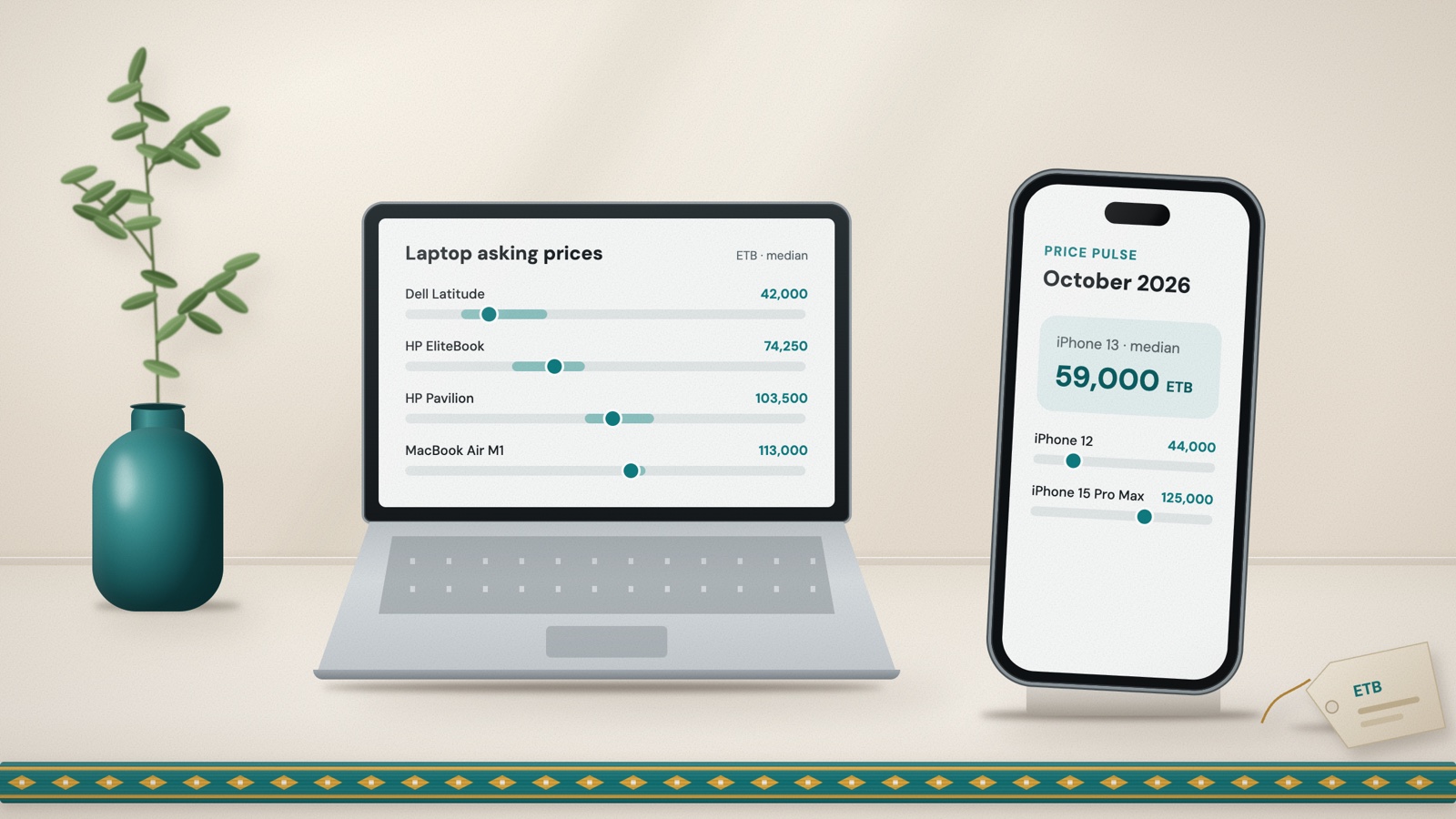
Phone and Laptop Prices in Ethiopia: October 2026 Price Pulse
Median asking prices and typical ranges for popular iPhones, Samsung, Tecno and Xiaomi phones, and HP, Dell, Lenovo, Asus and MacBook laptops, from 1,700+ Addiyon listings published between 10 September and 9 October 2026.
Oct 10, 2026 · 10 min read
Technology & Computers
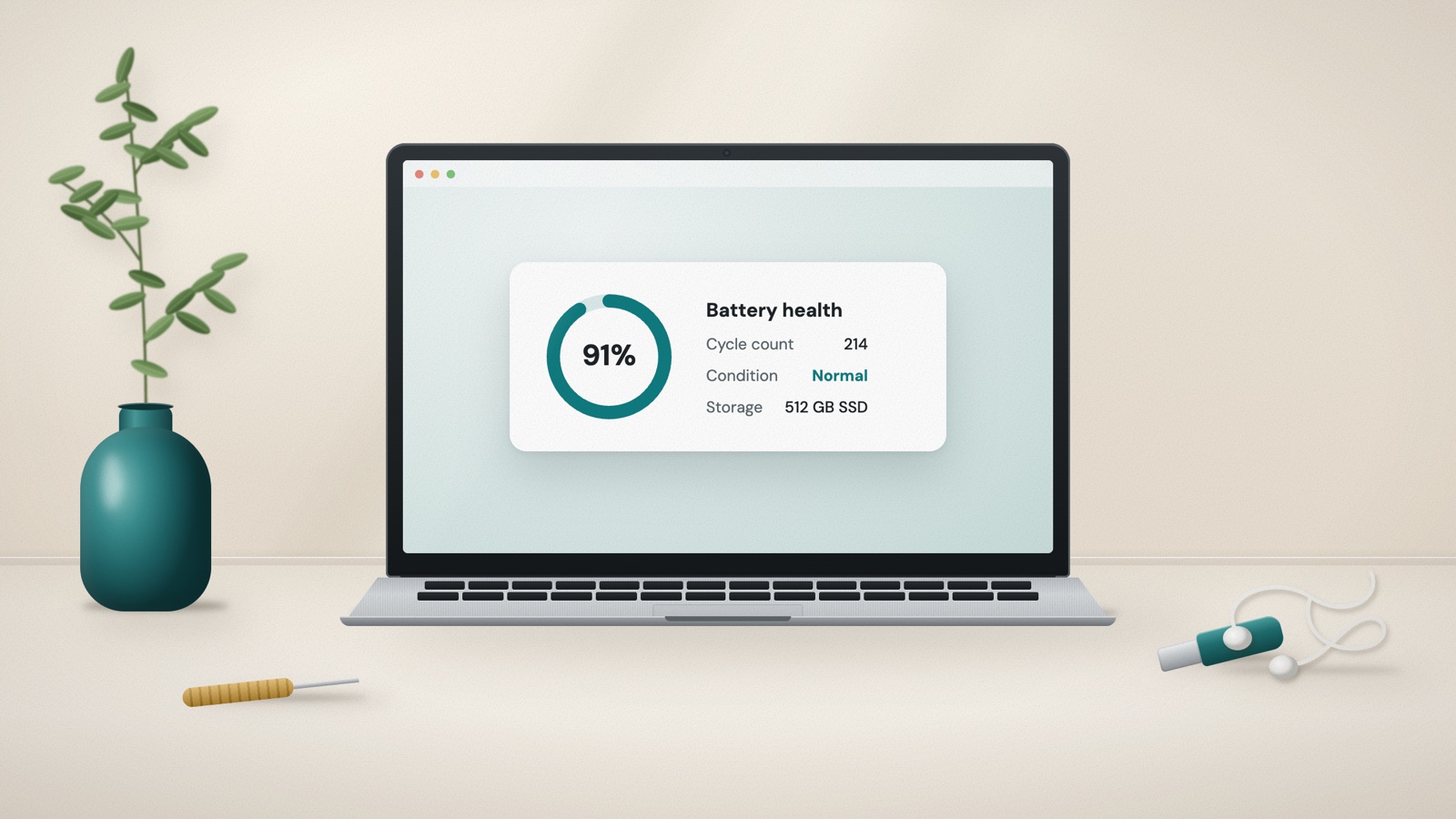
Buying a Used Laptop in Ethiopia? Test These Things First
A practical Ethiopia-focused checklist for checking a used Windows laptop or MacBook, including the real model, account locks, battery health, screen, keyboard, ports, storage, thermals, repairs, and payment.
Aug 16, 2026 · 12 min read
Technology & Phones
Buying a Used Phone in Ethiopia? Check These Things Before You Pay
A practical, Ethiopia-focused used-phone checklist: spot risky Telegram deals, verify IMEI and account locks, test replaced parts, battery, cameras, and local network service, then document the sale.
Aug 15, 2026 · 11 min read